How to create a new Excel file is easy when you know where to find the right option in Microsoft Excel. You can create a new workbook from the Excel start screen, use the File menu, or use a keyboard shortcut.
In this guide, you will learn three simple methods to create a new Excel file step by step.
Method 1: Create a New Excel File From the Start Screen
The Excel start screen is the easiest way to create a new Excel file.
Step 1: Open Microsoft Excel
First, open Microsoft Excel on your computer.
On Windows, open the Start menu, search for Excel, and select Microsoft Excel.
On Mac, open Microsoft Excel from the Applications folder, Launchpad, or Spotlight.
Step 2: Select Blank Workbook
After Excel opens, you will see the Excel start screen.
Click Blank Workbook.
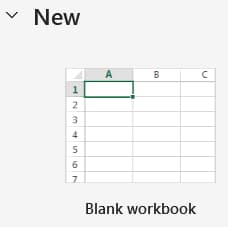
Excel will immediately open a new blank workbook.
Step 3: Start Using the New Workbook
A blank worksheet will appear with columns labeled A, B, C and rows labeled 1, 2, 3, and so on.
Click any cell and start entering your information.
You can now use the new workbook to create your spreadsheet.
Method 2: Create a New Excel File From the File Menu
If you are already working in Excel, you can create a new Excel file from the File menu.
Step 1: Open Microsoft Excel
Open Microsoft Excel and make sure a workbook is already open.
Step 2: Click File
Click File at the top of the Excel window.
A menu with different workbook options will appear.
Step 3: Select New
Click New from the File menu.
Excel will display options for creating a new workbook.
Step 4: Select Blank Workbook
Click Blank Workbook.
Excel will open a new blank workbook.
You can now start entering information into the new worksheet.
This method allows you to create a new Excel file without closing the workbook you are currently using.
Method 3: Create a New Excel File Using a Keyboard Shortcut
Using a keyboard shortcut is one of the quickest ways to create a new Excel file.
You can use this method when Microsoft Excel is already open.
Step 1: Open Microsoft Excel
Launch Microsoft Excel and open any workbook.
Step 2: Use the Keyboard Shortcut
On Windows, press:
Ctrl + N
On Mac, press:
Command + N
Step 3: Start Using the New Workbook
Excel will immediately open a new blank workbook.
You can click any cell and begin entering your information.
This method is especially useful when you frequently need to create new Excel files while working in Excel.
Which Method Is Best for Creating a New Excel File?
All three methods create a new blank Excel workbook.
The Blank Workbook option on the Excel start screen is the simplest choice when you are opening Excel.
The File menu is useful when another workbook is already open and you want to create a new one.
The keyboard shortcut is the fastest option when you are already working in Excel.